Calendar Events Functionality
Description
Calendar events. You can create an event with different repeat settings, we want to explain how to create and manage such events.
Repetition
The system is built with the possibility of creating separate and recurring events. Each type of event can be created using a specific recurrence pattern, such as:
- Does not repeat: A one-time event.
- Daily: The event recurs every day at the same time.
- Weekly: The event recurs every week on the same day and time.
- Monthly: The event recurs every month on the same date and time.
- Day of Month: The event recurs every month on a specific day of the month.
- Custom: The event recurs according to a user-defined pattern.
Permissions
Permissions within the Calendar Events module define who can create, edit, or delete events:
- Manager:
- Can create all types of events and assign staff and classes.
- Can view all events except for personal My Task events of other users.
- Teacher:
- Has access to the General Calendar and the Vacation/Sick Leave Calendar.
- Can only create My Task events.
- Can view all events if they are related to the teacher.
- Parent:
- Has access to the General Calendar and the Entrance Test Calendar.
- Cannot create any events in the calendar but can view Entrance Test events and reserve spots for their child if places are available.
- Student:
- Has access to the General Calendar.
- Cannot create any events.
Get started
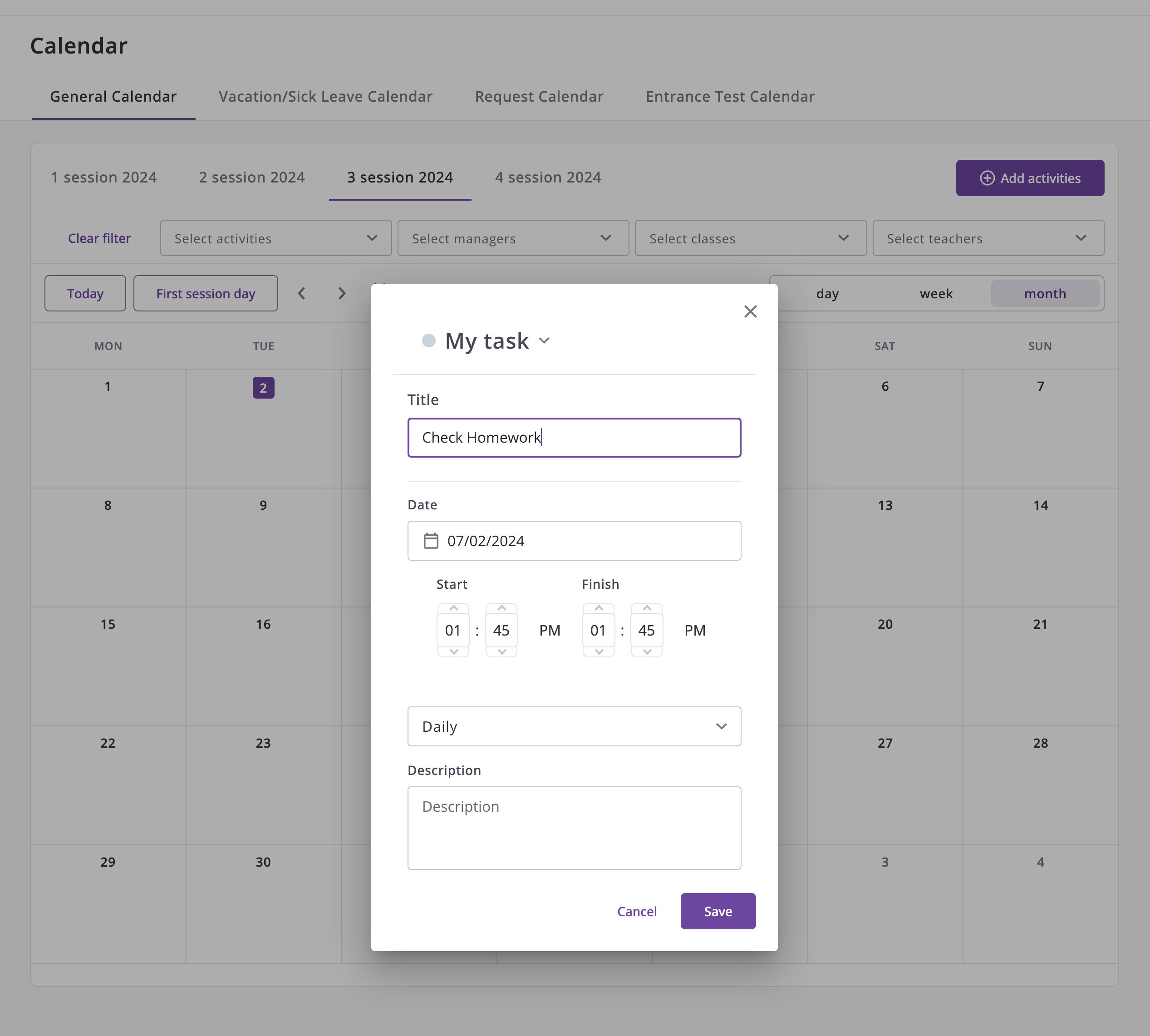
Creating an Event
- Go to the Calendar module. (Home page of the manager)
- Click on the Add activities button.
- Select the type of event you want to create.
- Fill in the event details, including the title, description, location, and start/end times.
Editing of Events
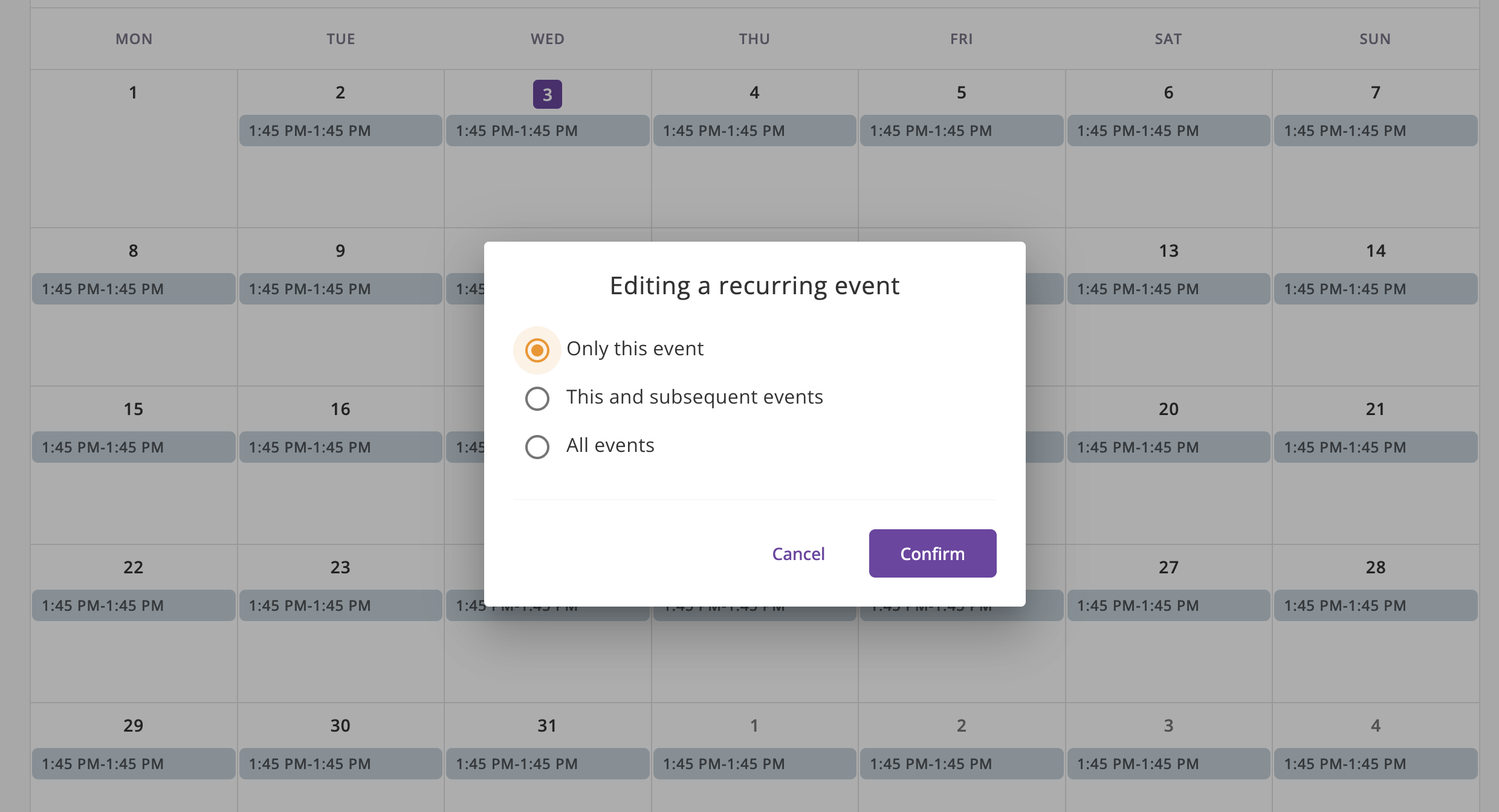
When editing recurring events, users can choose to apply changes in three different scenarios:
- Only this: Edits only the selected instance of the event, creating a separate instance for the modified event.
- This and subsequent events: Edits the selected instance and all subsequent instances, creating a separate series for the modified events.
- All events: Edits all instances of the event within the series.
Deletion of Events
Similar to editing, deletion of recurring events offers three scenarios:
- Only this: Deletes only the selected instance of the event.
- This and subsequent events: Deletes the selected instance and all subsequent instances.
- All events: Deletes all instances of the event within the series.