Text Book
Purpose of the Section
The Text Book section is designed to create items that are displayed in the Library. This section is created for standardized creation of identical items for further use in the educational process.
Key Features
- Adding files
- Assigning a department
- Specifying a grade
- Assigning a session number
- Specifying a year
Instructions for Use
Creating a New Item
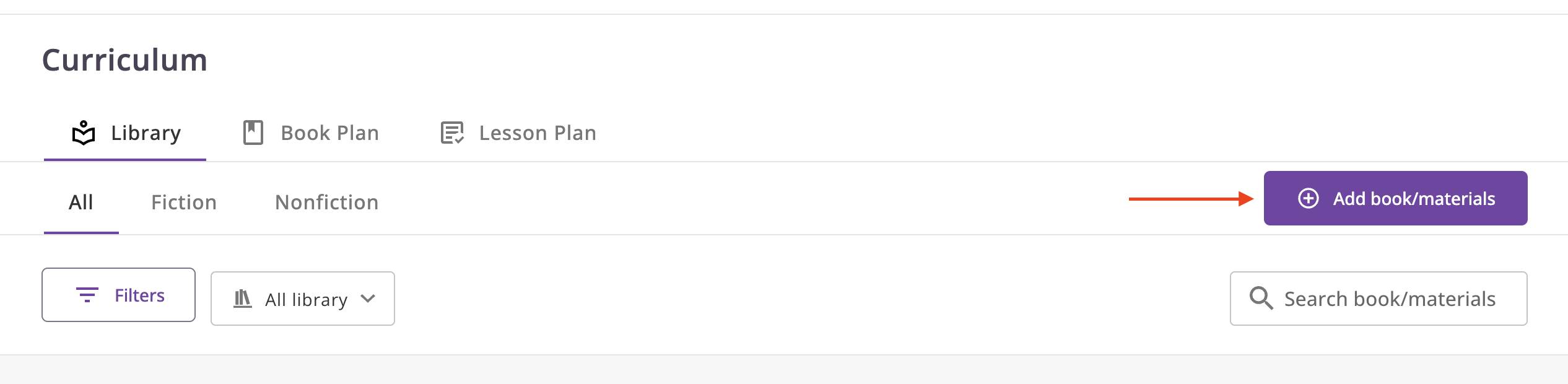
- Navigate to the Curriculum -> Library section in the main menu.
- Click the "Add book/materials" button.
Adding Files
- Supported file types: pdf, jpeg, jpg, bmp, heic, mp3, mp4, wav
- Max size: 100 MB
Lesson Plan
For each material, it is necessary to create a lesson plan specific to that material. In the lesson plan, indicate the following details:
Example:
- Lesson 1: Pages 1-4
- Lesson 2: Pages 5-6
- Lesson 3: Page 7
Creating or Editing a Lesson Plan
- Based on this lesson plan, a book plan will be created.
- After saving the material, the system will offer to "Create Lesson Plan" immediately. You can also create the lesson plan later.
- If you decide to create the lesson plan later, follow these steps:
- Navigate to Curriculum -> Library.
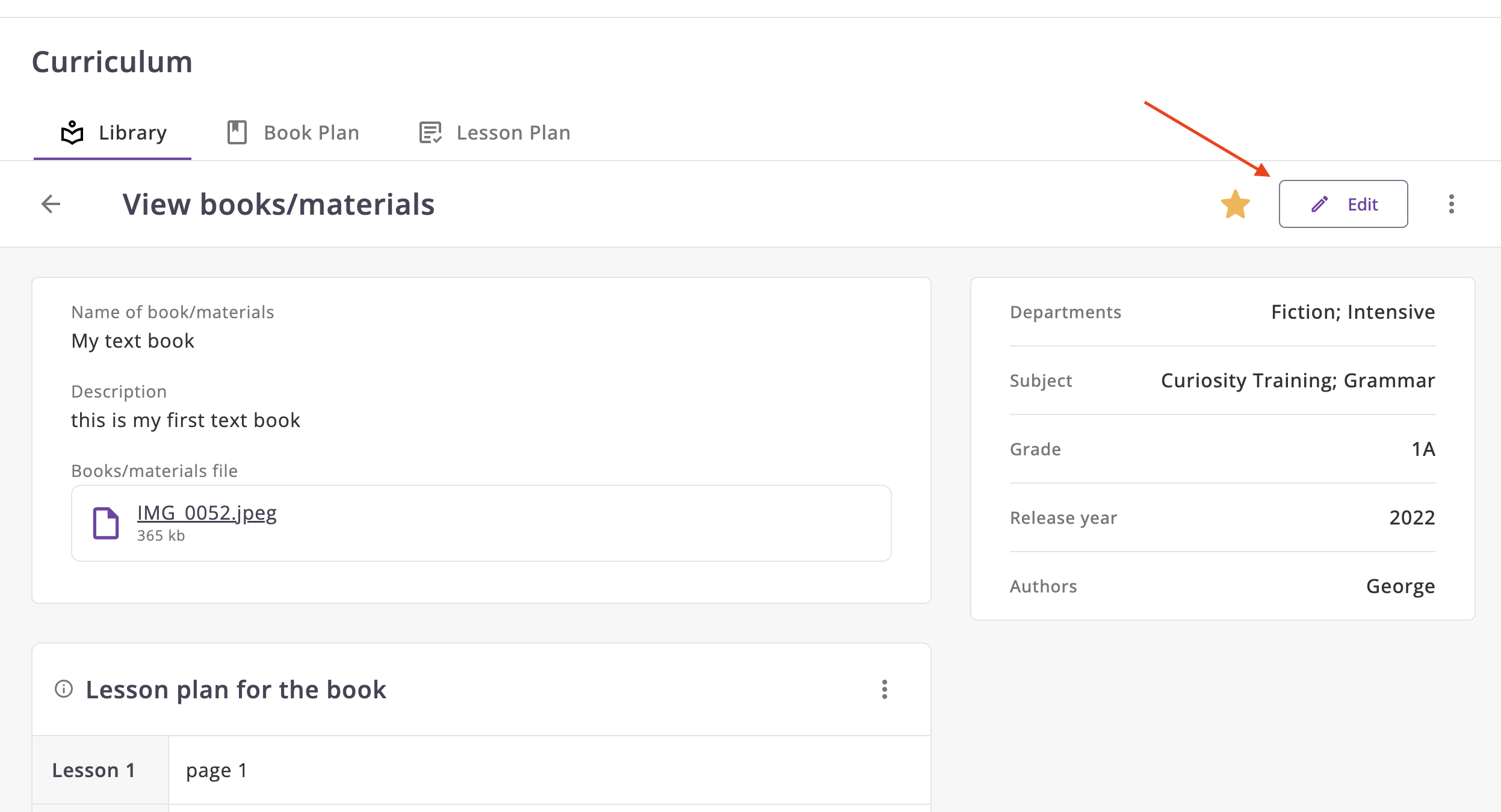
- Select the desired material and click the "Edit" button.
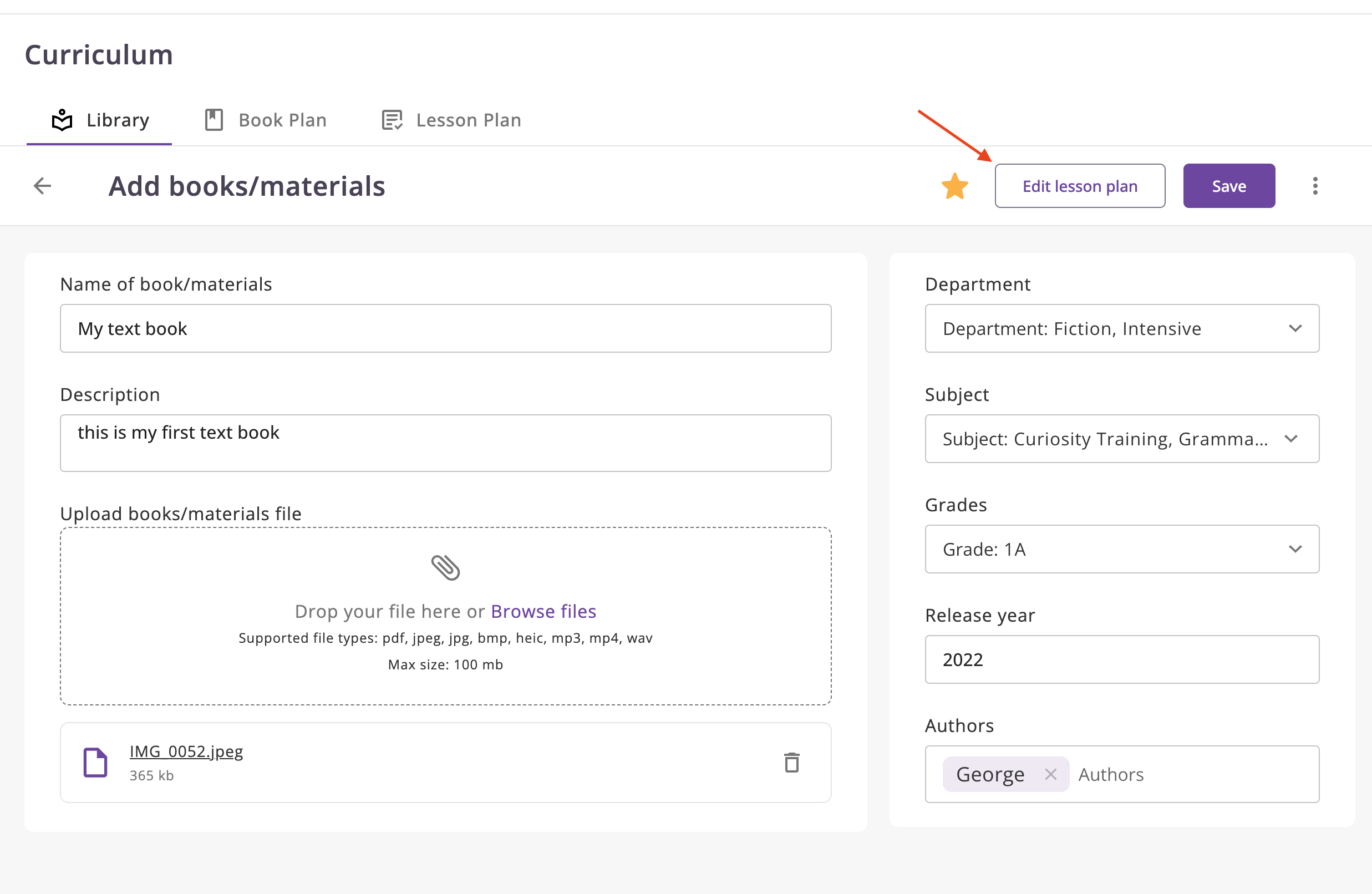
- If you have not yet created a lesson plan, the "Create Lesson Plan" button will be available next to the "Save" button. Otherwise, the "Edit Lesson Plan" button will be available. Click on it.
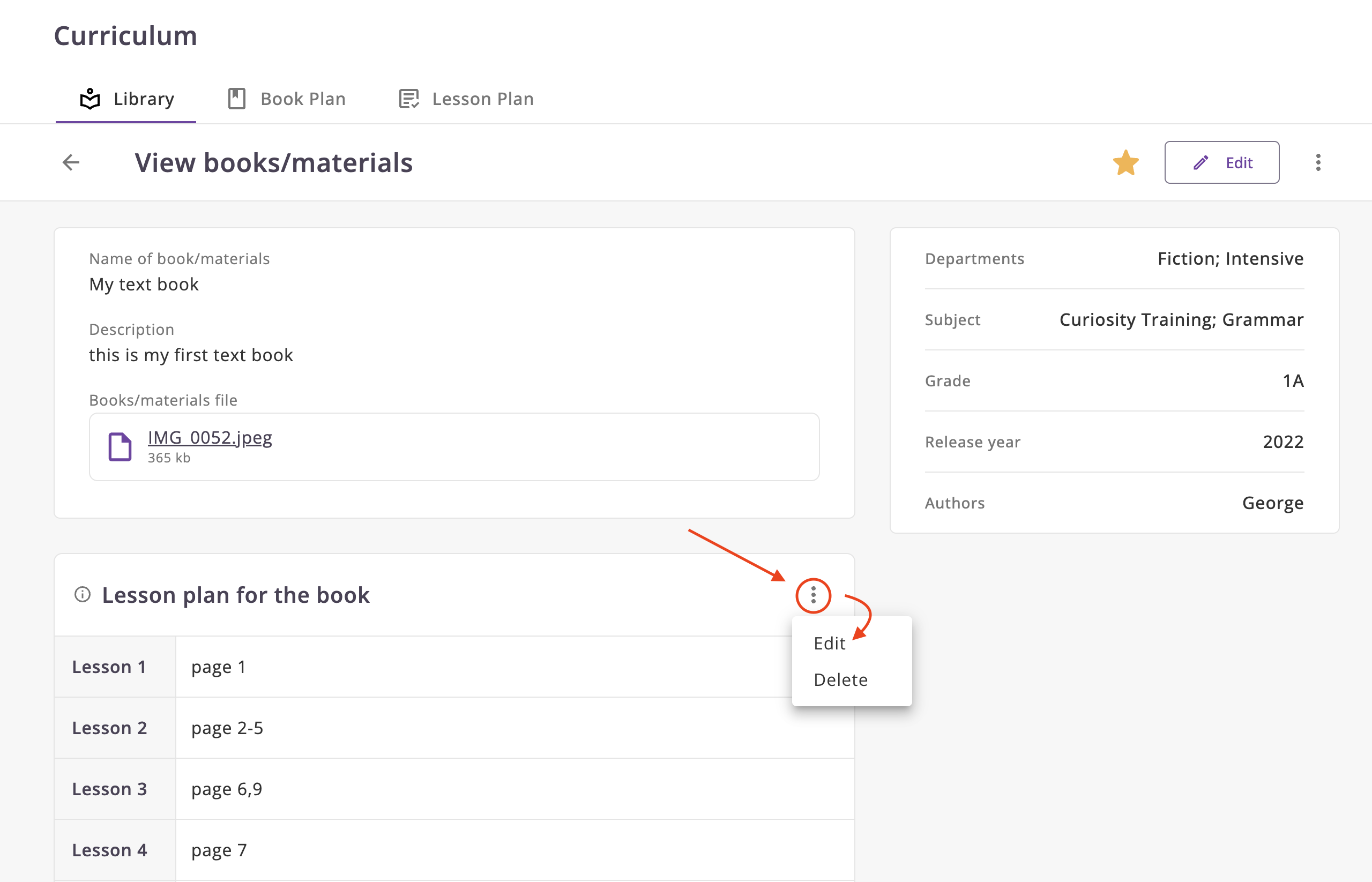
Alternative Way to Edit a Lesson Plan
- Navigate to Curriculum -> Library.
- Select the desired material.
- In the lower part, you will see a table with the schedule.
- Click on the icon to open the menu and select "Edit".
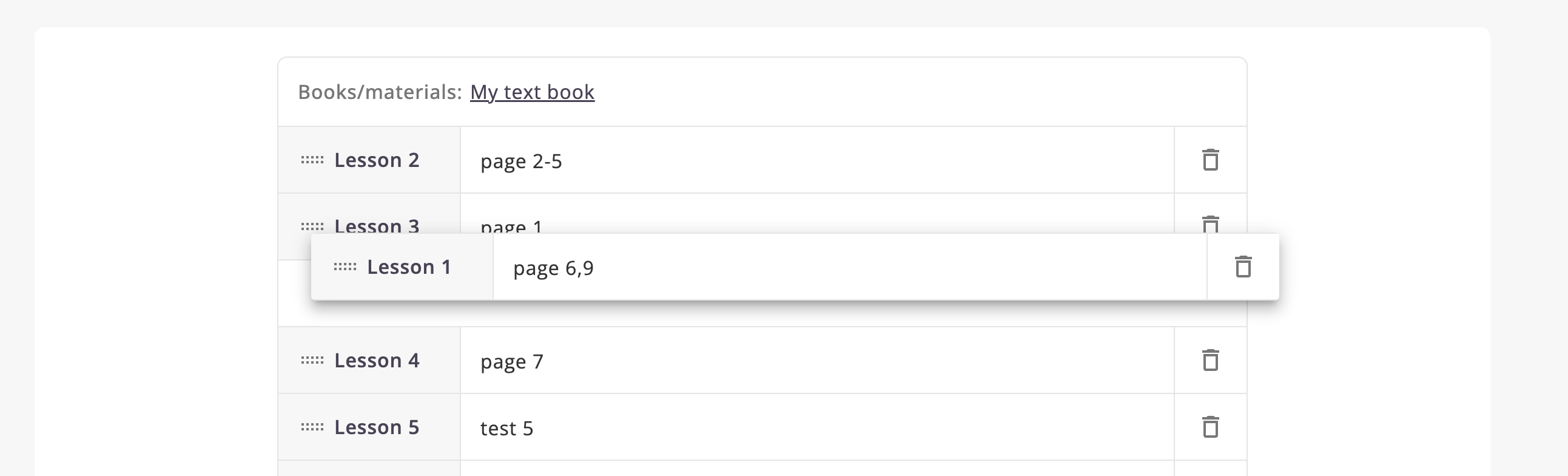
You can sort the materials:
You can change the order of the lessons by dragging.