Bookplan
The Bookplan is designed to facilitate the creation and management of educational plans for various grades and subjects. This module serves as a foundational template from which personalized lesson plans (Master Lesson Plans) can be generated, ensuring consistency and alignment with educational objectives.
Structure
Fields
The Bookplan module consists of the following fields:
- Grade: The level of education for which the plan is intended (e.g., A1, B2, B3).
- Department: A specific department or subject area (e.g., fiction, non-fiction, intensive course).
- Session: The session number for which the plan is intended (e.g., Session 2).
- Year: The year for which the plan is intended.
- Author: This field is filled automatically and cannot be changed.
- Editors: Specifies the users who are allowed to edit the plan.
- Locations: A list of locations where the plan will be available.
- Subjects: A list of items, each with a list of assigned materials.
Bookplan Statuses
- Draft: The plan is not yet ready for use.
- Ready: When a plan is ready to use but not yet active. A Master Lesson Plan cannot be created on the basis of such a Book Plan.
- Active: The plan is ready for use and you can create a Master Lesson Plan based on it.
- Archived: The plan is no longer in use.
Permissions
- Author: Automatically assigned and cannot be changed. The author has full control over the initial creation of the plan.
- Editors: Users specified in this field are granted permissions to edit the plan. Editors can update, modify, and manage the details within the plan.
Capabilities
- Creation of Educational Plans: Facilitates the development of structured plans for various educational levels and departments.
- Personalized Lesson Plans: Enables the generation of Master Lesson Plans tailored to specific educational sessions and needs.
- Location Management: Allows for the specification of multiple locations where the plan will be accessible.
- Material Assignment: Supports the assignment and management of educational materials to subjects within the plan.
- Favorites: Mark the book plans as selected for quick access.
Get Started
Navigation
To access the Book Plan, go to Curriculum -> Book Plan and select the desired plan.
Creating a New Book Plan
To access the Book Plan, go to Curriculum -> Book Plan and click on the Create button New Book Plan.
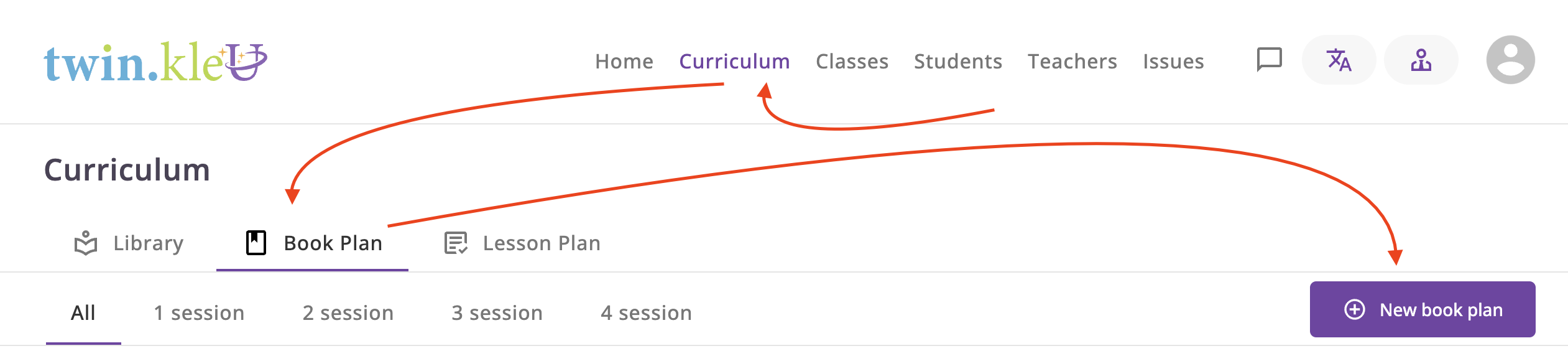
- A new book plan will then be created with draft status, and you will be redirected to it.
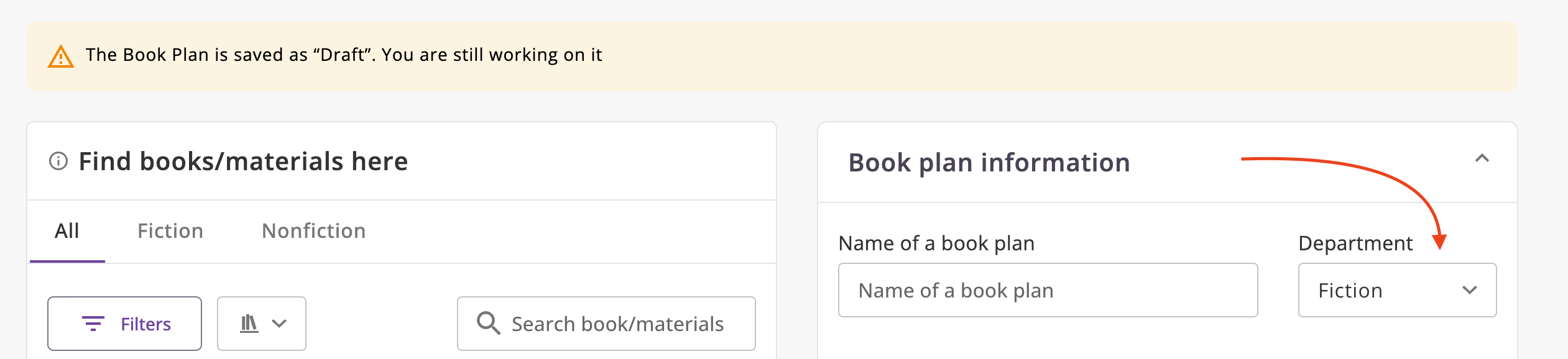
Department
After you select a department, the Subjects(department) block will appear where you can assign materials.
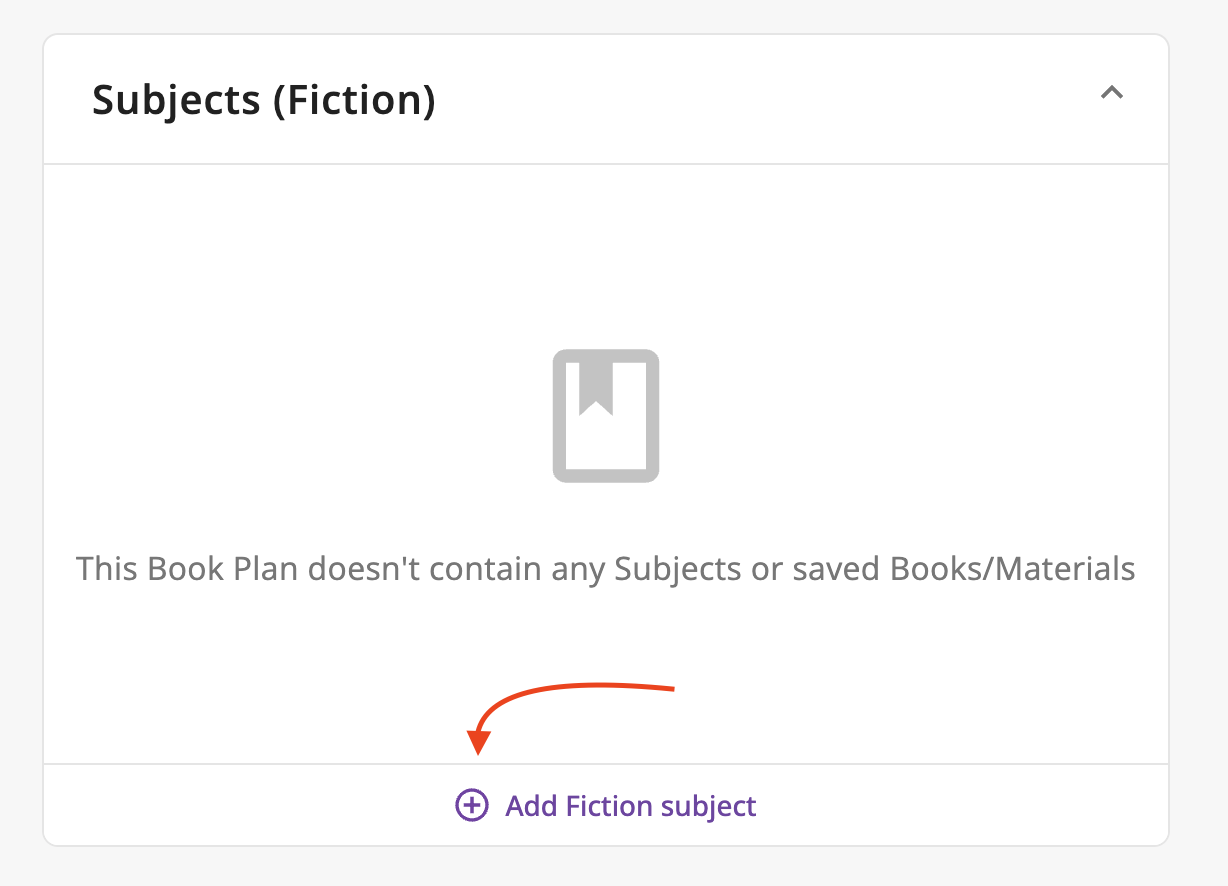
Subjects
- Click Add subject.
- Select type of subject and click Confirm.
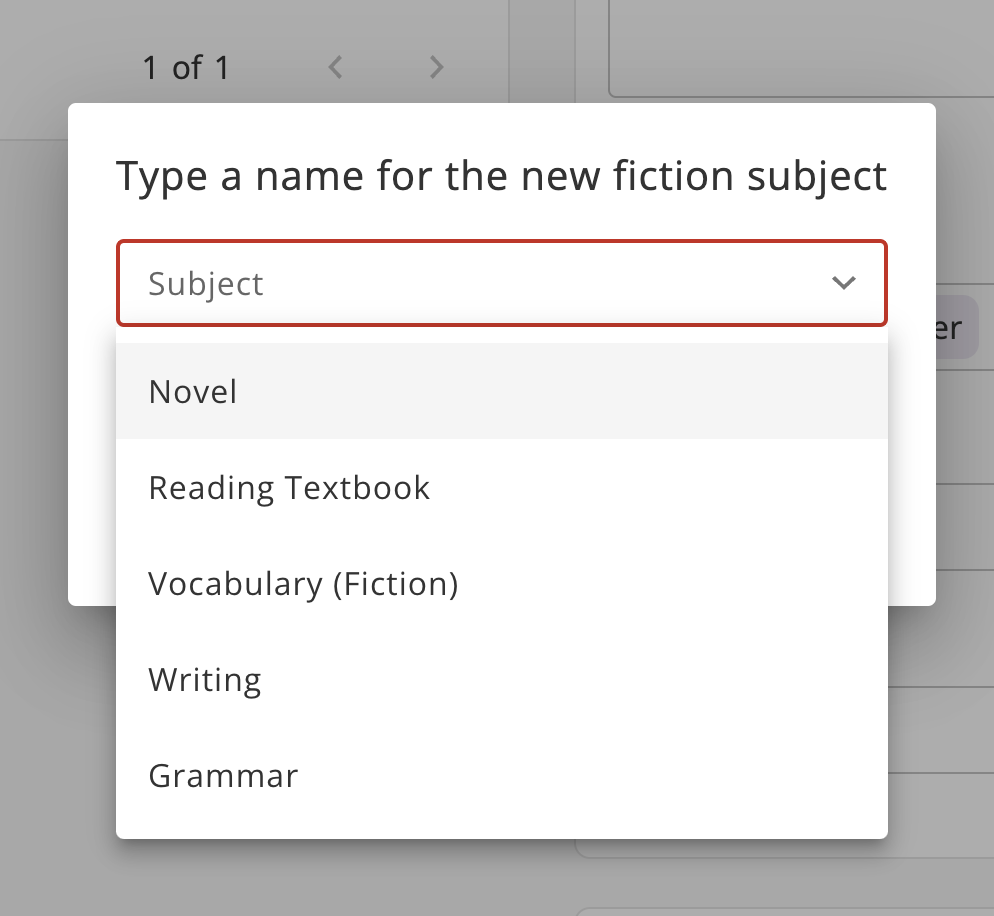
- You can to add more than one subject.
Add materials to the subjects
- Activate the desired subject.
- You will see the highlighted subject.
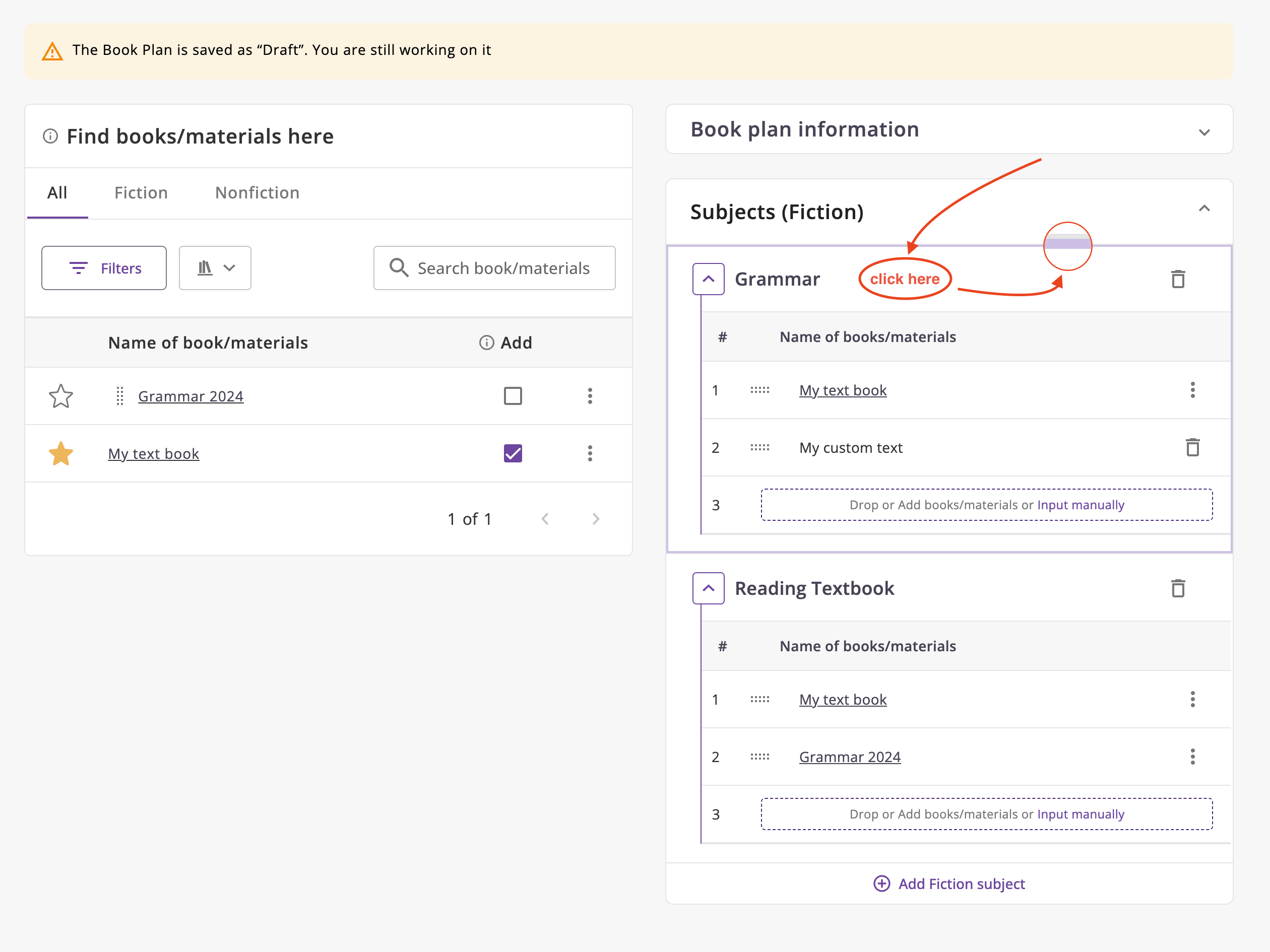
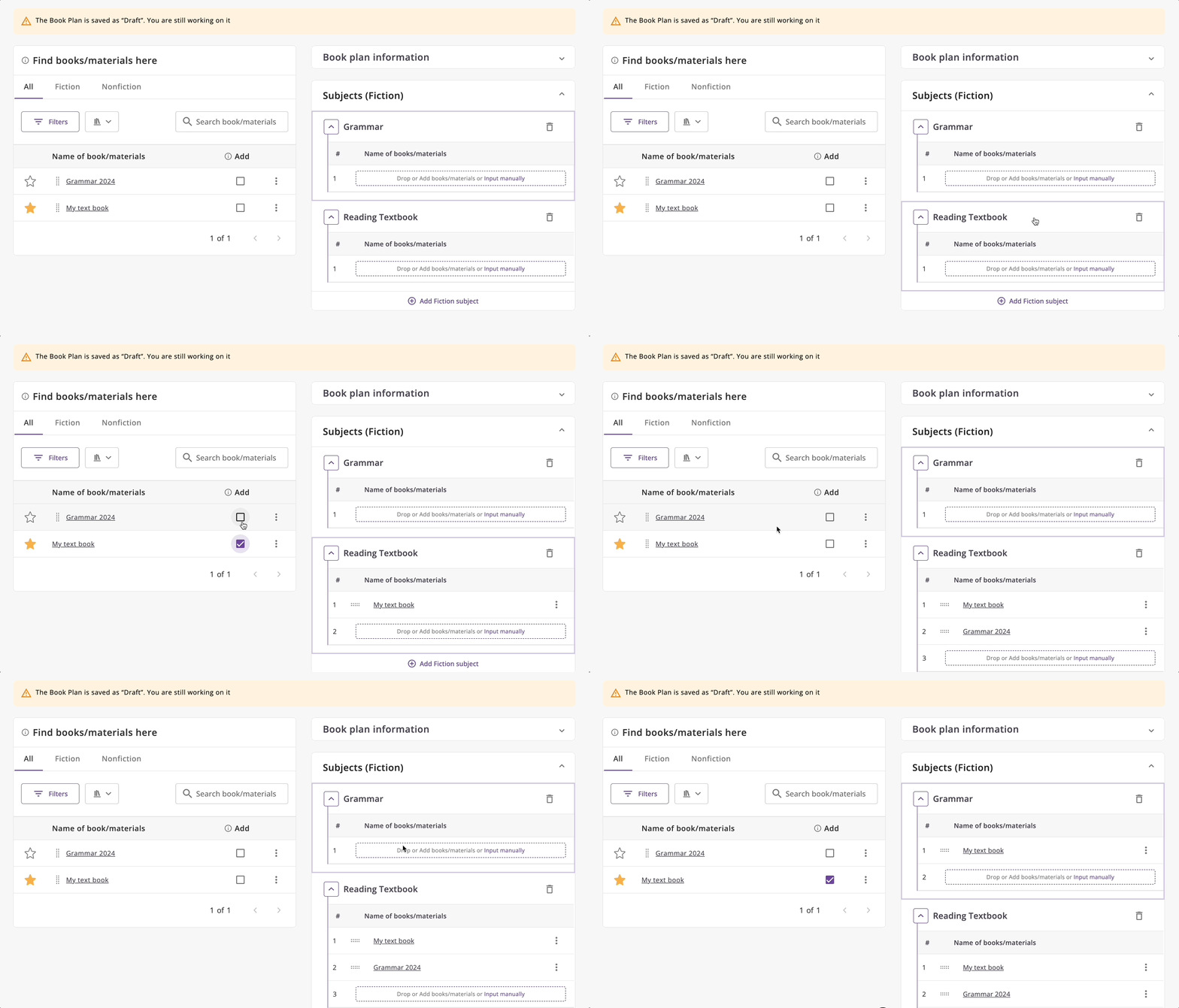
- Add materials to each item using checkboxes or drag and drop.
- Fill in the required fields and click Save.
Edit mode
From the list of book plans
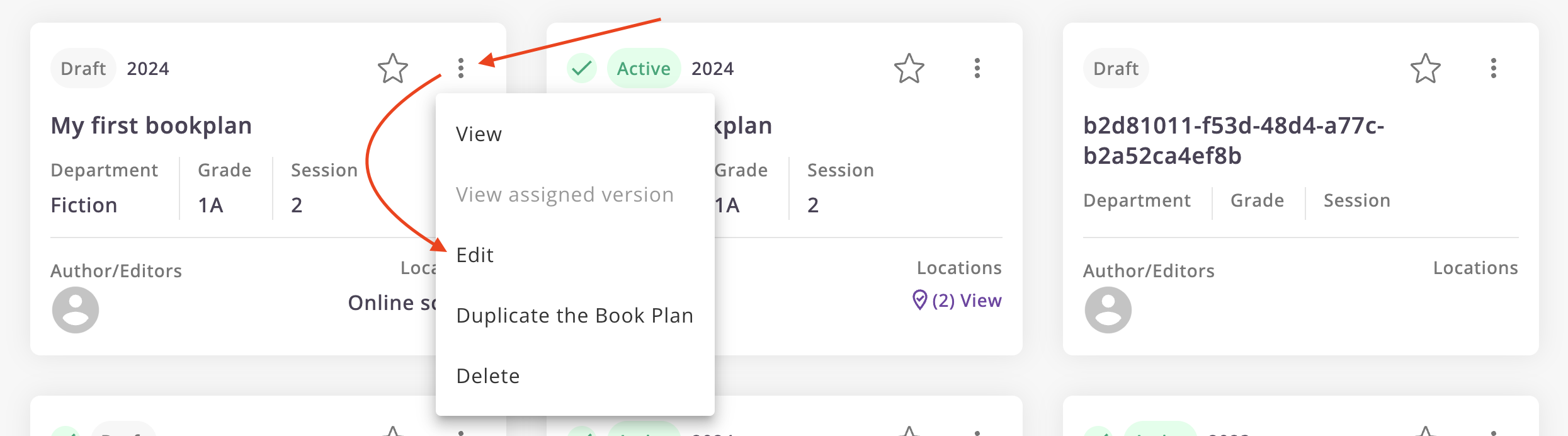
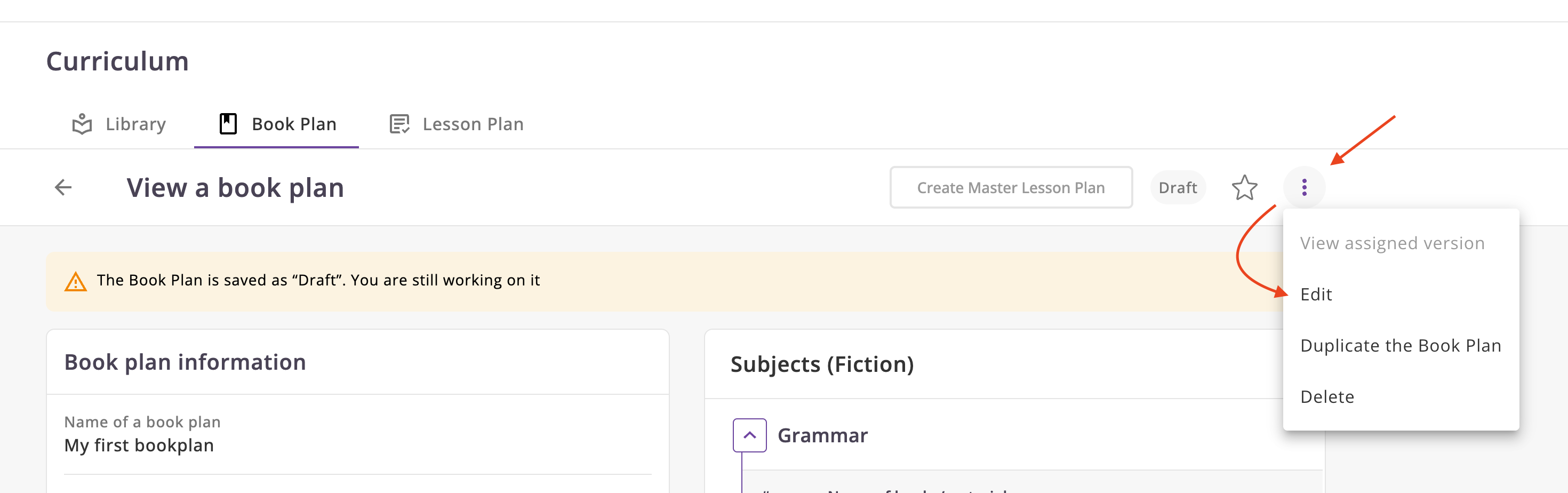
From the book plan